





Creating Floor Plans in Revit: Step-by-Step Workflow and Best Practices

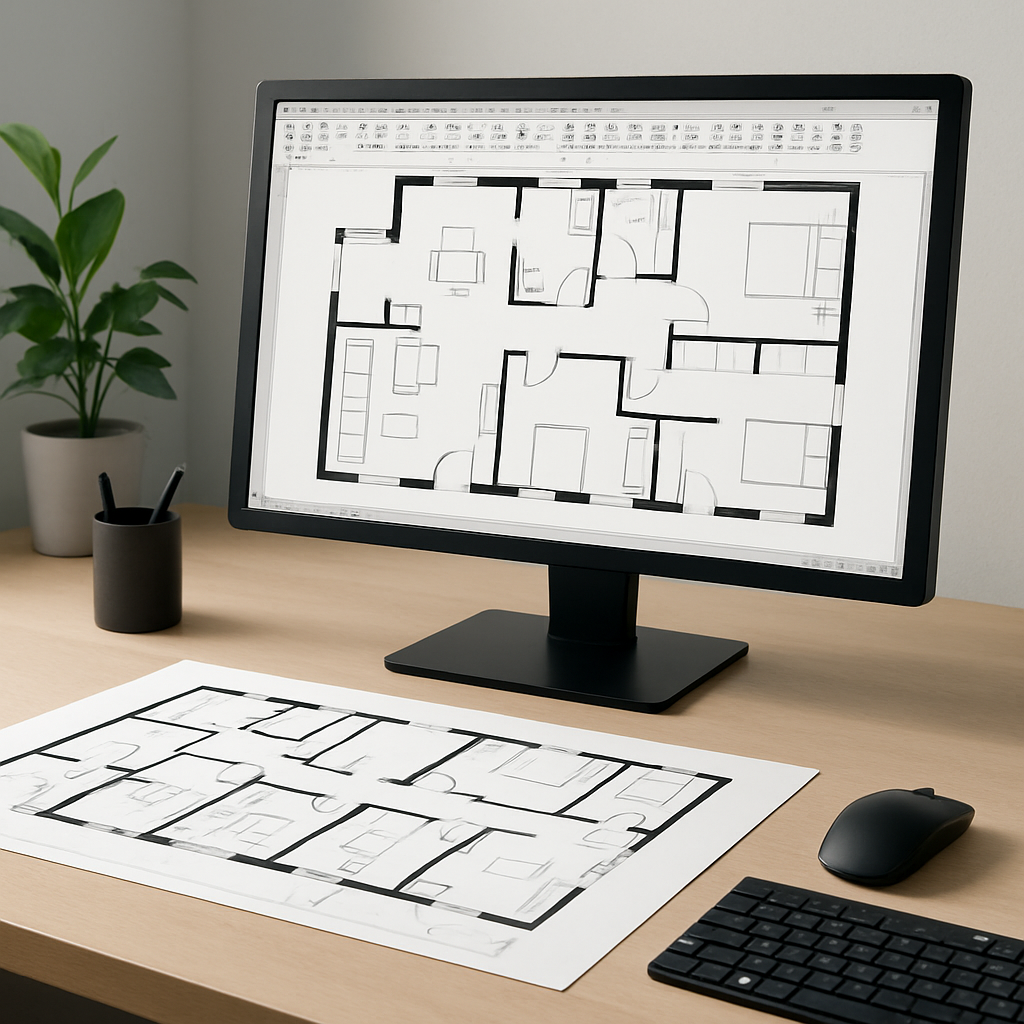
To create floor plans in Revit, start by setting up levels and grids, then use the wall, door, and window tools to define spaces. Annotate and organize your plan views for clarity and accuracy, ensuring your BIM model reflects design intent.
What Are the Basic Steps for Creating Floor Plans in Revit?
Creating floor plans in Revit follows a logical workflow that ensures accuracy and efficiency. Here’s a step-by-step guide to help you get started:
- Set Up Project Levels: Define building levels to represent each floor. Go to an elevation view, then use the Level tool to add or adjust levels as needed.
- Create Plan Views: Generate plan views for each level using the View tab’s Plan Views tool. This ensures you have a dedicated workspace for each floor.
- Establish Grids: Place grids to align structural and architectural elements. Use the Grid tool in a plan or elevation view for precise layout control.
- Draw Walls: With the Wall tool, trace the outline of your building or interior spaces. Select the appropriate wall type and adjust properties in the options bar.
- Add Openings: Insert doors and windows from the Architecture tab. Place them on walls, adjusting size and type as needed.
- Place Components: Add stairs, columns, furniture, and fixtures to define spaces further.
- Annotate the Plan: Use text, dimensions, and tags to convey design information. Tools for these are found under the Annotate tab.
- Organize Views: Set view templates, adjust visibility/graphics, and group related views for efficient documentation.
This sequence ensures your floor plan is both accurate and ready for further development in your BIM workflow.
To expand on these steps, it is important to understand how each task fits into the larger process of building modeling. For example, when setting up project levels, precision is critical—levels dictate not only the heights of each floor but also the reference for elements like ceilings, roofs, and foundations. Suppose you are designing a three-story office building. You would add a “Level 1” for the ground floor, “Level 2” for the second floor, and so on, naming each level clearly and setting the correct elevation. Levels can also be used for split-level designs or mezzanines by adding intermediate elevations.
Creating plan views for each level gives you a dedicated space to work on the specific floor layout. In multi-story buildings, you can duplicate and modify plan views to create demolition plans, reflected ceiling plans, or furniture layouts, each with its own annotation and visibility settings. For example, you might duplicate a floor plan and apply a “Furniture Layout” view template that shows only furniture families, making it easy to produce specialized documentation.
Grids are essential for aligning structural elements such as columns, beams, and load-bearing walls. In commercial construction, grids often correspond to column lines, which must be coordinated with structural engineers. You can adjust the bubble heads, change grid names, and extend or trim grids to fit the project. For instance, in a hospital design, grid lines help maintain clear corridors and align mechanical shafts across multiple floors.
When drawing walls, Revit allows you to choose from a library of wall types—such as stud walls, masonry, or curtain walls—or create custom types with specific materials, thicknesses, and fire ratings. You can also specify the wall’s height, function (e.g., interior or exterior), and location line (e.g., wall centerline or finish face). As you place walls, Revit provides temporary dimensions and alignment aids to ensure accuracy. For example, when designing an apartment, you can use the “Align” tool to make sure all kitchen walls are perfectly in line with each other.
Adding openings, such as doors and windows, is more than just placing symbols. Each family can be customized for size, type, material, and even swing direction. For example, you can select a double-leaf door for a main entrance or specify a fire-rated door for a stairwell. Windows might be casement, awning, or fixed, and Revit lets you control their sill height and head height relative to the level. Custom families can be loaded for specialty openings like storefront glazing or skylights. As you place these elements, schedules are automatically updated, ensuring that your documentation is always in sync with your model.
Placing components such as stairs, columns, and furniture further defines the building’s program. The stair tool allows for straight, L-shaped, or spiral stairs, with options for riser height, tread depth, and railing type. Columns can be structural or architectural, and you can adjust their height to span multiple levels. When modeling a school, for example, you might use the component tool to place lockers, desks, and restroom fixtures, using manufacturer-provided Revit families for accuracy.
Annotation is a critical step for communicating your design. Revit provides dimension tools for measuring distances between walls, doors, or centerlines, as well as text, room tags, and keynotes. Annotations can be grouped into legends, and you can use color schemes to highlight different room types or fire zones. For example, you could apply a color fill to all classrooms in a school plan, making it easy for stakeholders to visualize how spaces are allocated.
Organizing views is essential for efficient project management. View templates standardize graphic settings such as line weights, colors, and visibility, ensuring consistent presentation across all drawings. You can create “Presentation,” “Construction,” or “Permit Set” view templates, each tailored for its audience. Revit’s Project Browser allows you to organize views into folders based on floor, discipline, or drawing type, making navigation straightforward even in large projects.
Which Tools and Features Should You Use for Accurate Floor Plans?
Revit provides a comprehensive set of tools specifically designed for floor plan creation. Here are the most essential features:
- Wall Tool: The core tool for defining spaces. Use different wall types for exterior, interior, and partition walls.
- Doors and Windows: Pre-loaded families allow quick placement and customization.
- Dimension Tool: Ensures precision by allowing you to annotate distances between elements.
- Room Separation Lines: Use these to define rooms without creating physical walls, which is helpful for open-plan designs.
- View Range Settings: Adjust the view range to control which parts of the model are visible in your floor plan.
For example, after placing walls and doors, you can use the Room tool to define individual rooms and add tags for clarity—see more in the guide to creating rooms and room tags in Revit.
Let’s explore these tools more deeply. The Wall tool is not just for drawing; it enables you to select from a wide range of predefined wall types, each with embedded material and performance data. For example, you might use a stud wall with gypsum board for internal partitions in an office, but a masonry cavity wall for the exterior envelope. Wall joins are automatically cleaned up by Revit, but you can manually adjust joins for complex intersections. The wall’s properties palette lets you specify constraints such as “Top Constraint” (which level the wall should stop at), allowing for efficient multi-story modeling.
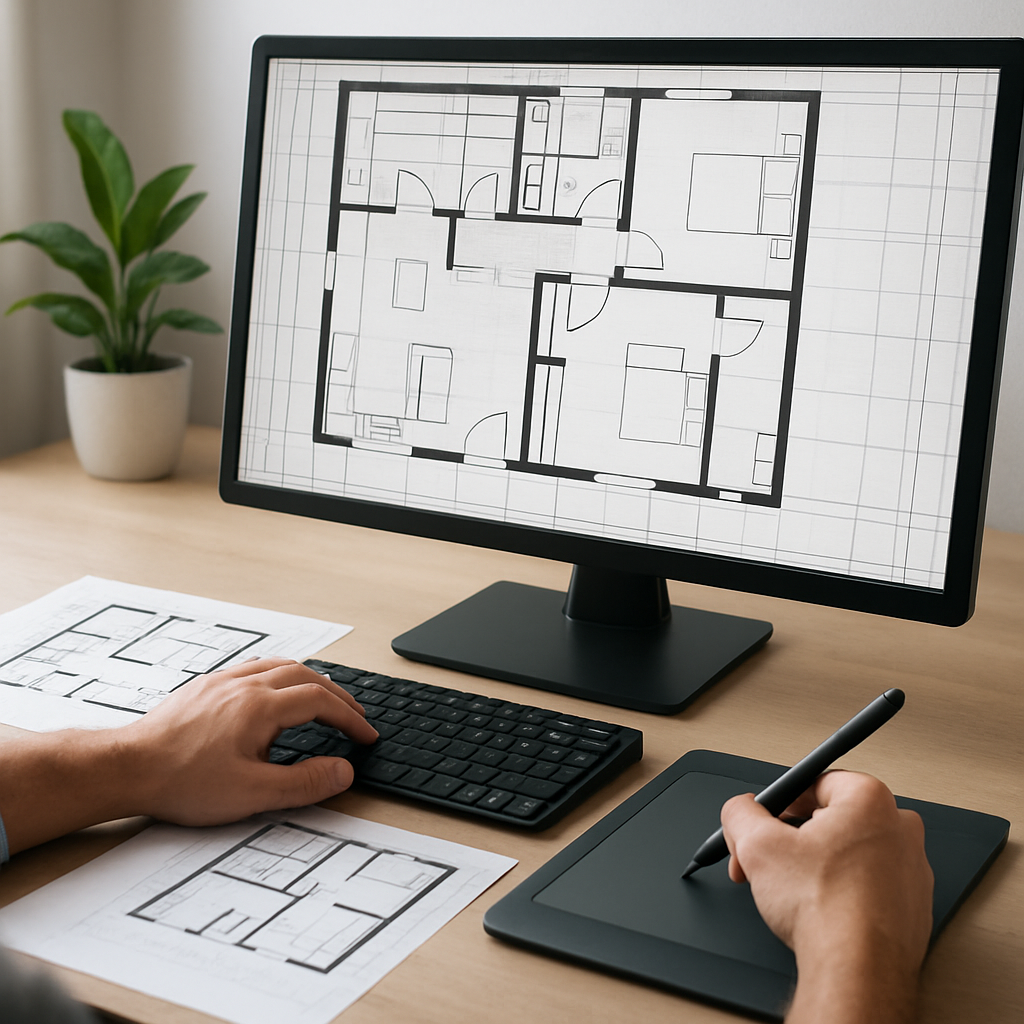
Doors and windows in Revit are intelligent families. Beyond basic size and style, you can embed parameters for fire rating, hardware sets, or manufacturer data. For example, if your project requires ADA-compliant entrances, you can select or create door families with appropriate clearances and swing radii. You might also schedule windows by type and size, making it easier to coordinate with suppliers or verify code compliance.
The Dimension tool offers several options: aligned, linear, angular, radial, and arc length. You can dimension between walls, to the center of openings, or to grid lines. For instance, in a residential project, you might provide overall dimensions from the exterior face of wall to wall, as well as critical interior dimensions for cabinetry or fixtures. Temporary dimensions appear as you sketch, but you can convert them to permanent dimensions for documentation. Using the “EQ” (equalize) option, you can quickly center doors or windows along a wall, a helpful feature for symmetrical layouts.
Room Separation Lines are especially useful in open-office or retail environments where you need to define separate areas (like departments or zones) without physical barriers. These lines can also help with code compliance, such as defining exit access corridors or occupancy zones. For example, in a large open-plan office, you can use room separation lines to delineate conference areas from workstations, ensuring accurate room tagging and area calculations.
View Range Settings are crucial for making sure your floor plan displays only what you intend. The view range controls the cut plane, top, and bottom extents of the plan. For example, if you are working on a multi-level atrium, you may need to adjust the view range to show balconies or mezzanines correctly. If stair landings or beams are not appearing as expected, tweaking view range parameters can solve visibility issues. This is particularly important for projects involving split levels, sunken spaces, or double-height rooms.
Revit also offers advanced tools like the “Copy/Monitor” feature for coordinating structural and architectural grids, and the “Worksharing” feature for teams. In larger projects, you might use worksets to divide the model into manageable segments, such as “Core and Shell,” “Interiors,” and “MEP,” each with its own set of views and permissions.
How Do You Annotate and Organize Floor Plan Views Effectively?
Clear annotation and organization are essential for communicating your design intent. Here’s how to achieve this in Revit:
- Use View Templates: Apply standardized view settings to maintain consistency across multiple floor plans.
- Visibility Graphics: Accessed via the VG shortcut, this feature lets you control the visibility of categories like furniture, grids, or structural elements.
- Tags and Schedules: Add tags to elements like doors, windows, and rooms. Create schedules to summarize quantities and types.
- Detail Components: Use detail lines and components to represent elements not modeled in 3D, such as dashed lines for overhead items.
Consistent use of these annotation tools ensures that your floor plans are clear and professional for both construction and presentation purposes.
To elaborate, view templates are a powerful way to enforce graphic standards across your documentation set. Suppose your firm has a standard way to display fire-rated walls, grid lines, or section markers—by saving these settings in a template, you can apply them instantly to new views. This eliminates the risk of inconsistent drawings, which is critical when multiple team members are working on the same project. View templates can also lock certain parameters, preventing accidental changes to scale or visibility.
Visibility Graphics, accessed by typing “VG,” open a dialog where you can toggle the display of model categories (such as doors, furniture, or plumbing fixtures) and annotation categories (such as tags and dimensions). For example, in a “Presentation Plan,” you might turn off furniture and grids for a cleaner look, while in a “Construction Plan,” you would display all elements for coordination. You can also override line weights, colors, and patterns to highlight specific elements—such as making fire-rated doors red for easy identification during code review.
Tags and schedules are essential for documenting and quantifying your design. Door tags can display unique identifiers, hardware sets, or fire ratings. Room tags show room names, numbers, and area—critical for space planning and compliance. Schedules are dynamic: if you add a new window, it’s automatically included in the window schedule. This reduces manual coordination and the risk of errors. For example, in a hospital design, you might generate a door hardware schedule listing every room’s door type, size, and fire rating, which streamlines procurement and installation.
Detail Components and lines are used to add information not modeled in 3D. For example, you might use a dashed line to indicate the swing of a folding partition, or place a “Break Line” symbol where a plan is intentionally cut. Detail components can also be used for items like toilet accessories, casework, or even symbolic representations of overhead beams. You can create detail groups for repeated elements, ensuring consistency and saving drafting time.
Organizing views in the Project Browser is also important, especially in large projects. You can create custom folders for disciplines (such as Architecture, Structure, MEP), drawing types (such as plans, sections, elevations), or phases (such as Existing, Demolition, New Construction). Proper naming conventions—like “Level 1 – Furniture Plan” or “Level 2 – Reflected Ceiling Plan”—make it easy to find the right view quickly, which is essential when collaborating with consultants or contractors.
What Are Common Pitfalls and How Can You Avoid Them?
When creating floor plans in Revit, beginners often encounter a few common issues:
- Incorrect Level Associations: Always verify that walls, doors, and windows are associated with the correct level to prevent elements from appearing in the wrong plan view.
- Improper View Range: If elements are missing from your floor plan, check and adjust the view range settings.
- Uncoordinated Grids and Levels: Ensure grids and levels are accurately placed and named, as these are fundamental for aligning all other elements.
- Overlapping Elements: Avoid placing duplicate or overlapping walls and components, which can cause errors in schedules and clash detection.
- Neglecting Annotation: Failing to add dimensions, tags, or notes can lead to misinterpretation during construction or review.
Regularly review your plan using 3D views and schedules to catch errors early. For advanced floor and ceiling modeling, refer to this guide to floors and ceilings in Revit.
Diving deeper, one of the most common mistakes is linking walls, doors, or windows to the wrong level. For example, if you draw a wall in the Level 1 plan but accidentally set its “Base Constraint” to “Level 2,” it may not appear as expected in your plans or elevations. This can lead to confusion during construction and costly change orders. Always check the properties palette for each element and use section views to visually verify their placement in the model.
Improper view range settings can cause frustration when elements seem to “disappear” from your plan. For instance, if you add a window at 7 feet above the floor but your cut plane is set at 4 feet, the window may not show up. Adjusting the view range ensures that all critical elements are visible. It’s helpful to create a “Coordination Plan” with an expanded view range for cross-checking all elements.
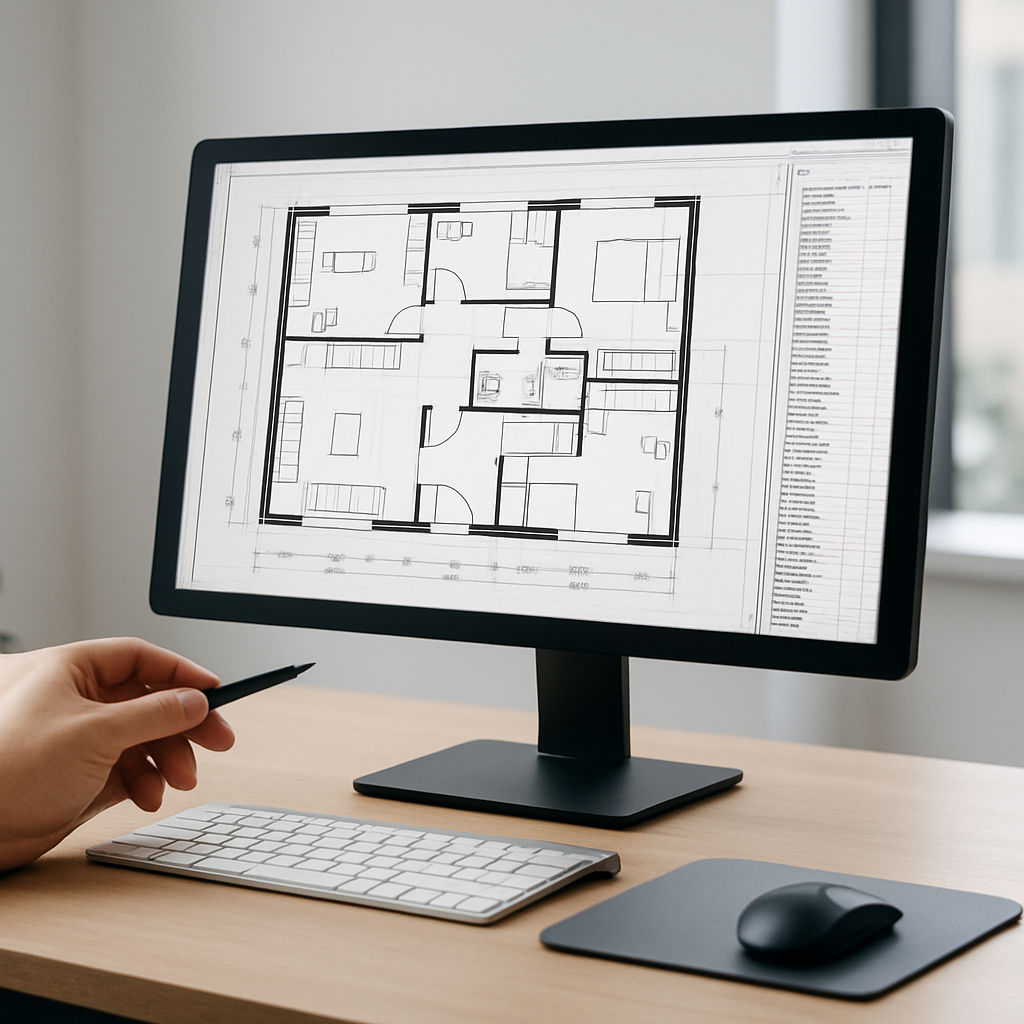
Uncoordinated grids and levels are a source of ongoing headaches, especially in projects that involve multiple disciplines. If an architectural grid does not match the structural grid, columns and walls may not align, causing issues during construction. To avoid this, coordinate with your engineering team early and use the “Copy/Monitor” tool to synchronize grids and levels between linked models.
Overlapping elements—such as two walls occupying the same space—can create duplicate counts in schedules or cause issues with clash detection tools like Navisworks. Periodically use the “Interference Check” feature under the Collaborate tab to identify and resolve these conflicts. For example, if you place a new interior wall but forget to delete an old one, both may appear in the floor plan and door schedule, leading to confusion and errors in ordering materials.
Neglecting annotation is also a frequent issue, especially for new users who focus on modeling and overlook documentation. An incomplete set of dimensions or missing room tags can result in ambiguous drawings. For example, contractors may misinterpret the intended location for a wall or door, leading to delays or rework. Establish a checklist for each plan view—ensure that all rooms are tagged, all doors and windows are numbered, and all critical dimensions are included before issuing drawings for review or construction.
Regular model reviews, ideally with the team, help catch these errors early. Use 3D views to walk through the model and spot inconsistencies that might not be obvious in plan. Schedules are also a powerful quality control tool—if a window or door appears twice or is missing, it will show up in the schedule. These practices are especially important as projects grow in size and complexity.
How Does Revit Compare to Other Software for Floor Plan Creation?
| Software | Strengths | Limitations |
|---|---|---|
| Revit | BIM integration, parametric modeling, automated documentation | Steeper learning curve, requires powerful hardware |
| AutoCAD | Flexible 2D drafting, industry standard, file compatibility | No native 3D BIM, manual coordination required |
| SketchUp | Intuitive modeling, quick conceptual design | Limited documentation, less suited for construction documents |
| ArchiCAD | BIM capabilities, easy teamwork features | Smaller user base, interface differences |
Revit’s strengths lie in its BIM-centric approach, allowing you to generate coordinated floor plans, sections, and schedules from a single model. This streamlines updates and reduces errors compared to traditional 2D drafting.
To illustrate, in a typical architectural workflow, changes to a floor plan in Revit—such as moving a wall, resizing a room, or swapping a door type—are instantly reflected in all related views, including sections, elevations, and schedules. This parametric capability saves significant time compared to manual drafting in AutoCAD, where each change must be repeated across multiple drawings. For example, if you update the width of a corridor to meet ADA standards, all related dimensions, room tags, and even area calculations update automatically in Revit.
AutoCAD, while an industry standard and extremely versatile for 2D drafting, lacks the built-in intelligence of BIM. Coordination between plans, sections, and elevations is manual, which increases the risk of errors and omissions. For instance, relocating a door in a plan view requires you to also update the elevation and schedule manually, which can be tedious in large projects. However, AutoCAD is still widely used for detail drawings, site plans, and situations where 2D precision is paramount.
SketchUp is popular for conceptual design and quick visualization. Its intuitive modeling tools let you rapidly generate massing studies, explore design options, and create persuasive client presentations. However, SketchUp’s documentation capabilities are limited—a construction set produced in SketchUp often requires additional work in another platform. For example, you might model a building in SketchUp and then export views to layout software for annotation, which is less efficient than Revit’s integrated documentation workflow.
ArchiCAD offers robust BIM features and is favored by some firms for its teamwork capabilities, especially in collaborative environments where multiple users work on a single model simultaneously. Its interface and workflow differ from Revit, but it provides similar benefits in terms of coordination and data management. Firms that prioritize real-time collaboration between architects and consultants may find ArchiCAD’s teamwork tools advantageous, although the smaller user base can mean fewer resources and third-party add-ons.
Revit’s model-centric approach is also beneficial for downstream uses such as energy analysis, clash detection, and facility management. The data-rich model allows for integration with other tools, such as Navisworks for coordination or Insight for sustainability analysis. For example, a healthcare project modeled in Revit can be exported for MEP coordination, with all rooms and systems accurately tagged and scheduled, reducing RFIs and change orders during construction. This level of integration is difficult to achieve in software that relies on disconnected 2D files.
While the learning curve in Revit can be steep, especially for those transitioning from traditional CAD, the long-term benefits in efficiency, coordination, and accuracy are substantial. Investing time in learning Revit’s floor plan tools pays off by reducing rework, improving communication, and enabling true BIM workflows that support the entire building lifecycle—from design through construction, commissioning, and facility management.
Frequently Asked Questions About Creating Floor Plans in Revit
Can I import an existing CAD drawing to start my Revit floor plan?
Yes, you can import or link a CAD file (such as a DWG) into Revit as a reference. This is useful for tracing over existing plans, but you should ensure the CAD file is clean and organized before importing to avoid unnecessary layers and elements.
How do I create multi-story buildings in Revit?
Create additional levels in an elevation or section view for each story. Then, generate plan views for each level and use the Copy/Paste Aligned tools to duplicate elements like walls and grids across floors as needed.
What is the best way to handle changes to the floor plan later in the project?
Because Revit is parametric, most changes to elements in the model will automatically update all related views and schedules. Use groupings and referenced views to manage repeated elements, and always double-check annotations after major modifications.
How can I make my Revit floor plan more presentable for clients?
Use view templates for consistent graphics, apply color fills to rooms, and add detailed furniture or entourage families. Adjust line weights and add legends or keys to clarify symbols and materials for non-technical audiences.
Is it possible to collaborate with others while creating floor plans in Revit?
Yes, Revit supports worksharing, allowing multiple users to work on the same project file simultaneously. Use a central file and synchronize regularly to keep everyone's work up to date.
One thought on “Creating Floor Plans in Revit: Step-by-Step Workflow and Best Practices”