





Mastering Floors and Ceilings in Revit: Pro Strategies for Seamless Design

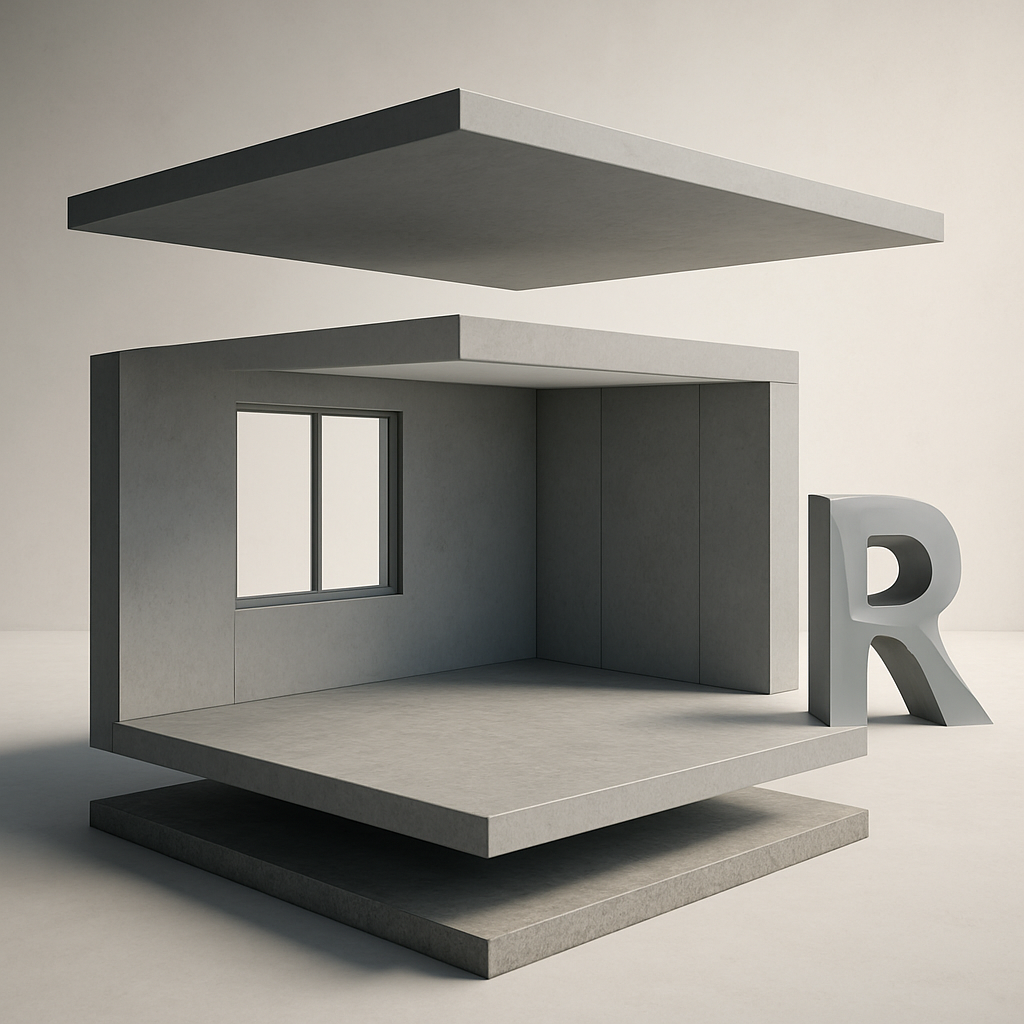
Why Floors and Ceilings Matter: The Foundation of Revit Mastery
Let’s be honest: when you’re knee-deep in a new Revit project, it’s tempting to breeze through the floor and ceiling setup so you can get to the “interesting” parts. But here’s the thing—precision in how you create floors and ceilings is the backbone of every solid model in Revit. If you’ve spent any time as an architect, designer, or BIM specialist, you already know these elements do so much more than just fill a space. They shape everything from how rooms connect and how MEP systems thread through your building, to the smoothness of your construction phase. Still, it’s surprisingly common to see floors and ceilings added as an afterthought—and that’s usually when the headaches start. If you want to cut down on late-night troubleshooting (who doesn’t?), it’s worth understanding not just how to use Revit’s floor and ceiling tools, but why they work the way they do.
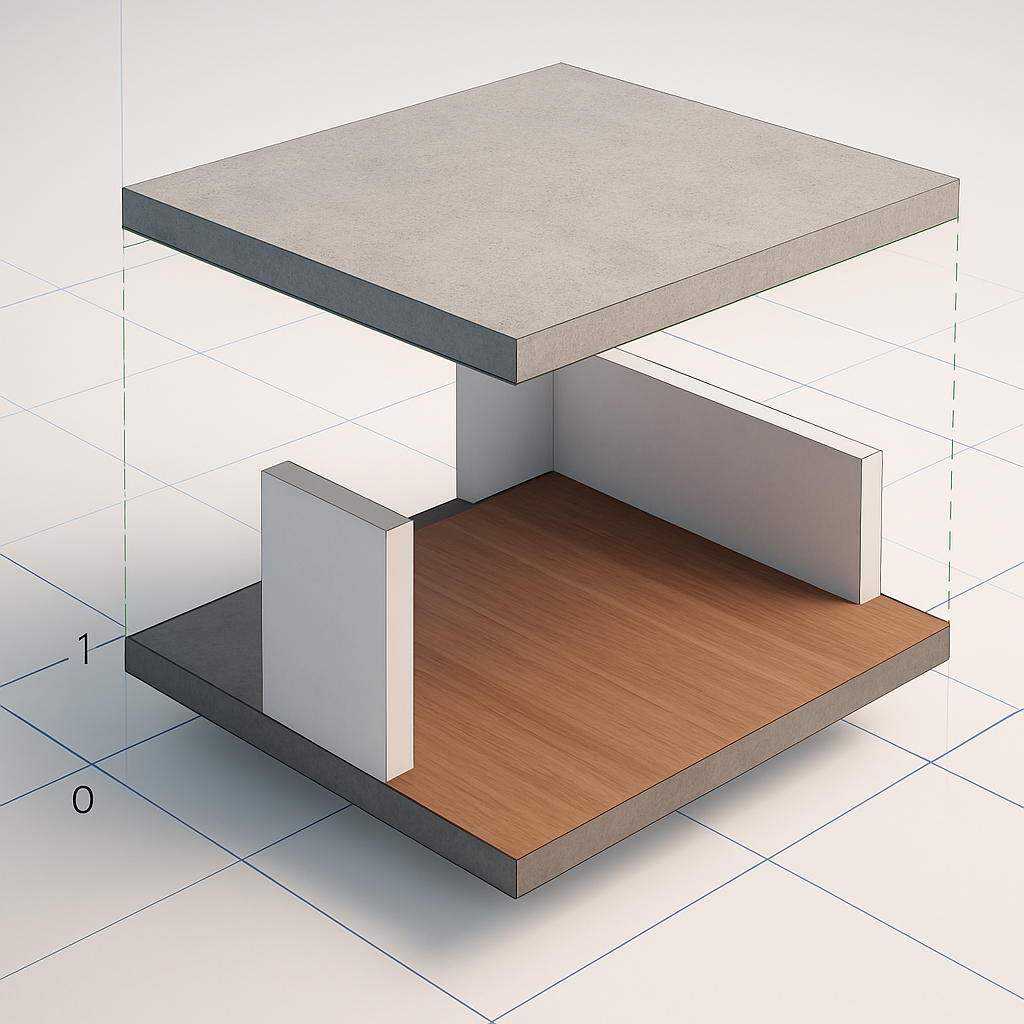
Picture this: you’re tackling a multi-story office build. If the floors don’t line up with your structure’s levels, or your ceilings are set too low for the ductwork, you’re setting yourself up for hours of backtracking. Aligning these elements early—using Revit’s parametric strengths—lets you build in the flexibility and precision you’ll need later. Creating floors and ceilings isn’t just a matter of clicking buttons and tracing outlines. It’s about weaving intelligence into your design from day one, so your model responds smoothly to every inevitable change.
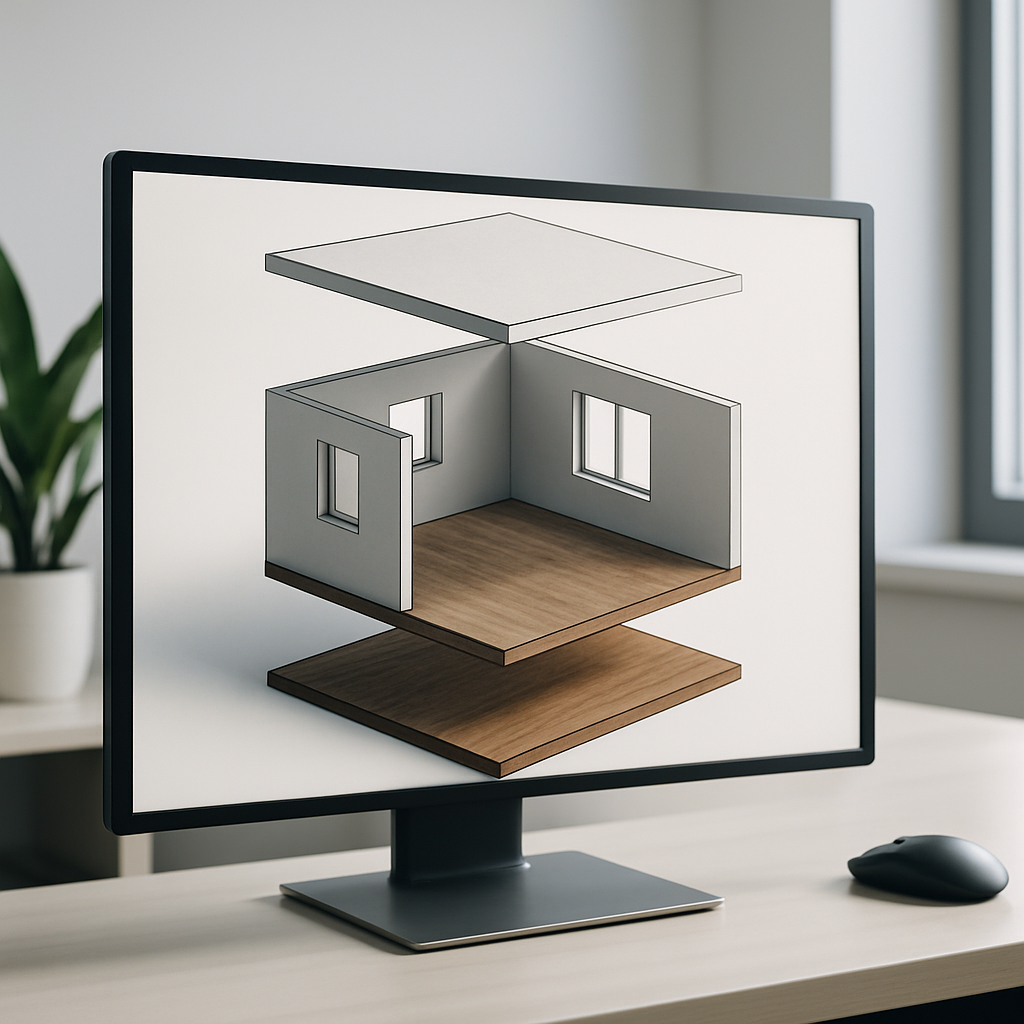
In this article, I’ll walk you through how to approach floors and ceilings not just as technical tasks, but as strategic moves that can save you time, hassle, and even office arguments down the line. You’ll get practical advice from someone who’s been there—on anticipating snags, optimizing collaboration, and dodging the mistakes that trip up even experienced users.
Setting Up for Success: Levels, Grids, and Reference Planes
Before you so much as glance at the Floor or Ceiling tool, you need a rock-solid project skeleton. Any seasoned Revit user will tell you: getting your levels and grids dialed in from the get-go is non-negotiable. These aren’t just a bunch of arbitrary lines—they’re the anchors every floor slab and ceiling finish will rely on. The more accurate your initial setup, the less time you’ll spend untangling problems later.
Start by making sure every floor of your building has a properly named, precisely placed level in Revit. Take a moment to check the elevation values and stick to clear naming conventions. Personally, I like to include both the function and elevation in level names, something like “Level 2 – 3700mm.” It might look a bit wordy, but it’ll pay off in clarity. When it comes to grids, coordinate closely with your structural engineer. Snapping floors and ceilings to a well-set grid helps avoid misalignments and makes future revisions way less painful.
Don’t underestimate the power of reference planes. They’re your secret weapon for things like sloped floors, feature ceilings, or stepped slabs. Let’s say you’ve got a dramatic ceiling sloping up to a daylight-filled clerestory in the lobby—set up a reference plane for it right away. This makes sure your modeling stays rooted in the actual design intent, and if things change (which they will), you’ll be able to adjust quickly without scrambling.
Some teams like to use a template file stocked with standard levels and grids. That’s a great starting point, but don’t just accept them as-is. Take the time to adjust for each unique project. Trust me, investing this effort up front is worth it. If you let a level slip out of alignment or a grid drift from its intended spot, you risk compounding errors that can haunt your documents and coordination later on.
Parametric Power: Creating and Customizing Floors in Revit
Once you’ve nailed your levels and grids, the real fun begins—creating floors. The Floor tool in Revit isn’t just a quick way to sketch slabs. It’s surprisingly powerful, letting you embed material layers, structural properties, and even set up HVAC zones right inside your model. What really sets it apart is how parametric it is: floors you set up correctly now can flex and adapt with your design as things evolve.
Before you start sketching, pick the right floor type. The defaults are okay, but odds are you’ll need something more specific. For example, if you’re working on a lab, maybe you need a composite steel deck with extra insulation. Don’t be afraid to duplicate a floor type and tweak its structure—add the layers you need, set exact thicknesses, and assign real materials. This isn’t just about making your model look good; it leads to more accurate schedules, takeoffs, and even helps the visualization down the road.
When you draw your floor boundary, the “Pick Walls” tool is your friend. By letting the floor’s edges follow the walls, you’re setting yourself up for major time savings. If you shift a room later, the floor updates automatically, instead of you needing to redraw it. For things like floor openings, stairs, or shafts, use the Edit Boundary function or the Shaft Opening tool—both give you cleaner and more controlled geometry. Also, pay attention to the location line setting. Whether your floor aligns to the wall’s core or finish face can subtly affect how walls join and how you detail things later on.
If you’re dealing with ramps, split-level spaces, or sloped surfaces, try out the Modify Sub Elements feature. You can easily nudge points and edges to create slopes and drains, all while keeping your floor as a single object. That keeps your model tidy and much easier to manage. Just don’t go overboard with subdivisions—too many tweaks can make it hard to keep track of finishes and can mess with your quantity takeoffs. There’s a sweet spot between flexibility and simplicity, and finding it comes with experience.
Beyond Basics: Ceiling Systems, Hosted Elements, and Coordination Tips
Ask any BIM coordinator and they’ll tell you: ceilings are often left to the last minute, but you’ll save yourself a world of trouble by bringing them in earlier. The Ceiling tool in Revit is more versatile than it gets credit for. Whether you’re laying out a standard grid in an office or creating a dramatic, custom-shaped feature ceiling in a lobby, you’ve got options. The automatic ceiling tool is fast and perfect for regular rooms, snapping easily to walls. When you need something more bespoke, the sketch tool is there to give you total control over the boundary shape.
Here’s one habit that pays dividends: match your ceiling types to how they’ll really be built. If you’re specifying an acoustic lay-in grid, set up a ceiling family with the right tile size and grid spacing. For drywall or high-end feature ceilings, dial in the thickness and finish layers. This practice doesn’t just help with 3D views—it keeps your schedules and material lists accurate and saves you from awkward surprises during coordination and procurement.
Ceilings do double duty as hosts for all those important MEP elements—lights, sprinklers, diffusers, speakers, and more. Use Revit’s hosting features to your advantage. Place fixtures so they’re properly attached to their ceiling hosts, and you’ll find that moving or tweaking ceilings later on is a breeze (instead of a pain). Just be mindful when you copy or mirror ceilings; sometimes hosted elements can get left behind or end up in the wrong place. A quick best practice: use the Coordination Review tool regularly to catch and resolve any mismatches between your ceiling layouts and MEP runs.
And if you’re working on bigger projects with linked models—where the architectural, structural, and MEP folks are all in their own files—coordination becomes critical. Make copy/monitor part of your workflow to keep ceilings lined up with ducts and lighting. It’s not the most glamorous part of BIM, but scheduling regular coordination reviews (where you actually look at ceilings together) can save you from embarrassing issues, like a sprinkler head falling right on top of a ceiling grid intersection. Trust me, it happens more than you’d think!
Expert Pitfalls and Pro Tips: Avoiding Common Mistakes
No matter how long you’ve been working in Revit, everyone falls into certain traps with floors and ceilings. A classic one is breaking floors into too many separate segments—one for each room, for instance. At first glance, it might feel logical, but this can create tricky alignment problems at thresholds and becomes a real headache when you try to manage phasing. When possible, keep floors as continuous as you can, and use phasing tools or filters to show changes over time instead of splitting everything up.
Another easy mistake is forgetting to update your floor and ceiling types as the project develops. You might start off during Schematic Design or Design Development with generic placeholder assemblies, but if you don’t go back and update them for construction documents, you risk putting out schedules and drawings that just aren’t accurate. To avoid this, keep a checklist and make it a routine to review all assemblies before every major issue. It saves you from those embarrassing “wait, what is this made of?” moments in coordination meetings.
Ceilings come with their own special pitfalls, especially when your project has a variety of floor-to-ceiling heights. Don’t just rely on plan views—take the time to look at sections and 3D perspectives to spot any oddities. For sloped or stepped ceilings, use reference planes and always tag elevations clearly so everyone is on the same page. And whatever you do, don’t overlook ceiling voids. These cutouts have big implications for lighting, ventilation, and even fire protection. Model them as accurately as possible, and communicate changes quickly to the rest of your team and consultants.
Finally, get comfortable with Revit’s scheduling and tagging features. Set up floor and ceiling finish schedules to pull data straight from your model—this keeps your documentation in sync automatically. Use color-filled plans to visually audit your spaces for inconsistencies. When you’re juggling dozens of rooms (or more), these quick visual checks can catch issues before they turn into real problems down the line.
Building Confidence: Practice, Templates, and Continuous Learning
Mastering floors and ceilings in Revit isn’t about memorizing every tool tip or shortcut. It’s all about building up a repeatable, confident process so you can tackle any project that comes your way. Start by setting up your own “base” template—with well-organized levels, grids, and a library of standard floor and ceiling assemblies that you know work. Then put yourself through the paces: try modeling a typical open office, a multi-level auditorium, or a lobby with a sculpted ceiling. The more scenarios you take on, the more natural it all becomes.
If you’re working with a team, don’t underestimate the value of shared standards. Take the time to document your naming conventions, floor and ceiling types, and keep a shared library of tried-and-true assemblies. When someone runs into a tricky detail, encourage them to write it up and add it to your team’s wiki or training materials. It doesn’t just help new hires—it saves everyone time in the long run.
Remember, both Revit and building practices are always evolving. Stay active on forums, check out webinars, and browse manufacturer resources for new assemblies or clever techniques. And if you find yourself stuck, don’t be shy about reaching out—some of my favorite solutions have come from a quick chat with a colleague or a post on a professional forum.
At the end of the day, modeling floors and ceilings in Revit is about much more than just getting everything to line up. It’s about creating a strong, coordinated foundation for your project—one that leaves as little room as possible for error or confusion. With these strategies, a bit of curiosity, and a willingness to keep learning, you’ll find yourself not just avoiding the usual headaches, but becoming the go-to Revit expert that everyone on your team can count on for smooth, efficient, and buildable designs.