





Unlocking Efficiency: Proven Techniques for Adding Doors and Windows in Revit

Understanding the Fundamentals: Why Revit Handles Doors and Windows Differently
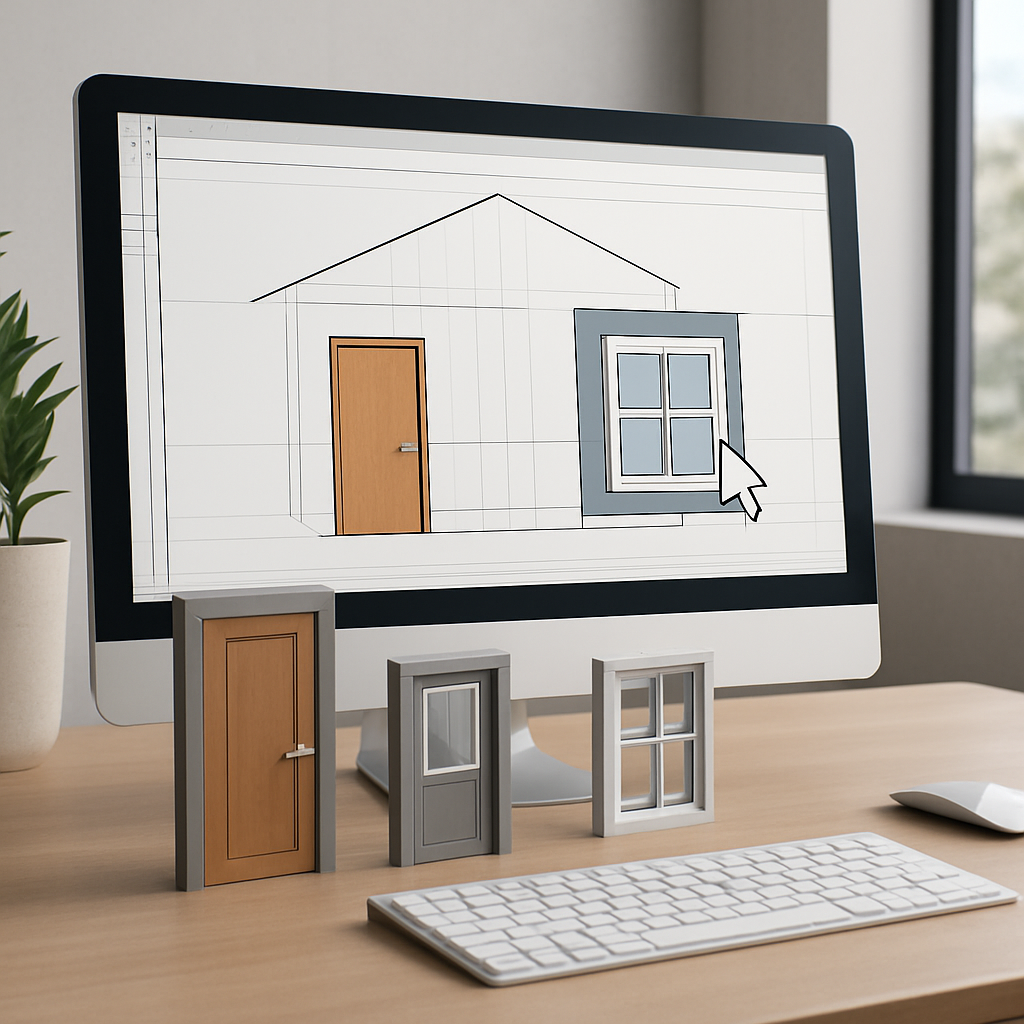
If you’re new to Revit, one of the first things that might catch you off guard is how the software deals with doors and windows. Unlike classic CAD programs where you simply draw these elements onto your plans, Revit takes a totally different approach: it treats them as parametric families. In plain English, when you add a door or window in Revit, you’re not just sketching a shape—you’re placing a smart object loaded with data. These families aren’t just pretty pictures; they adapt to wall thicknesses, update themselves in every view, and carry information that can drive everything from schedules to cost estimates. On one hand, this method can really streamline your workflow and make your model a lot smarter. On the other, it does require a shift in thinking and a bit of initial legwork to get things set up properly.
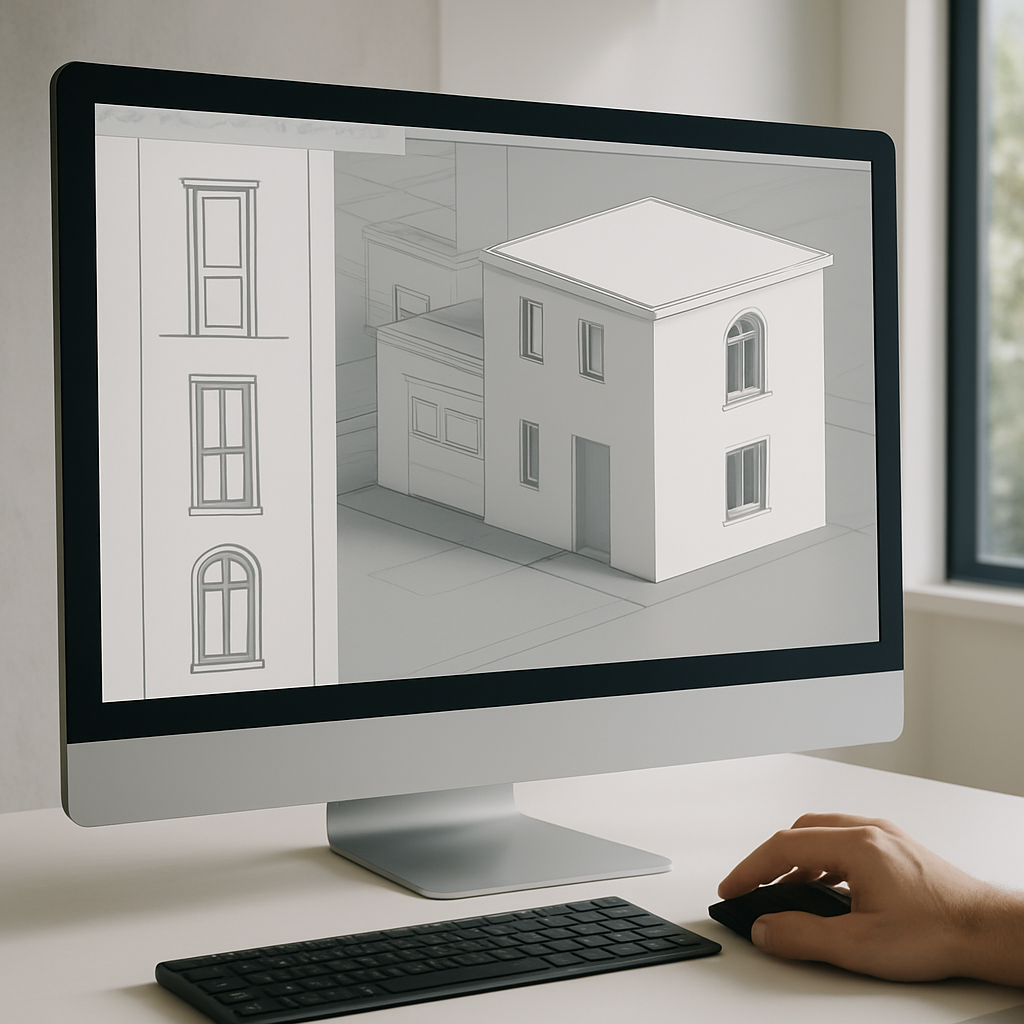
It’s helpful to start thinking of doors and windows in Revit as living, breathing pieces of your building, rather than just symbols on a page. They’re dynamic: they tie into schedules, respond to changes in wall layouts, and can automatically feed into your quantities and cost takeoffs. If you’ve ever wasted time double-checking drawings or fixing coordination mistakes, embracing Revit’s way of handling these elements will be a breath of fresh air. The trick, of course, is knowing how to place, tweak, and manage these families so you’re actually taking advantage of all that built-in intelligence. So let’s roll up our sleeves and get into the nuts and bolts of adding doors and windows in Revit—because if you do it right from the start, you can save yourself a world of headaches down the road.
Technique #1: Selecting and Loading the Right Families for Your Project
Let’s start with the first decision you’ll have to make: choosing the families for your doors and windows. Revit comes stocked with a handful of basic, out-of-the-box families; they’re fine for quick sketches, but they rarely match the specific needs of real-world projects. Don’t just accept the default options—look for or create families that match your design, the requirements of manufacturers, or even local building codes. There’s a treasure trove of manufacturer-specific Revit families online, many of which come packed with detailed, editable parameters. And if you need something truly unique, you can always customize an existing family to match odd shapes, sizes, or performance specs.
When you’re loading up these families, pay close attention to their parameters. The more flexible the family, the more options you’ll have later on. Take a solid window family, for example—it might let you adjust the frame material, glazing type, or sill height with just a few clicks. If you’re working as part of a larger team or firm, consider setting up a shared library for your standard families. It’s one of those things that takes a little effort at first but pays off big time—suddenly, everyone’s on the same page, and you’re not wasting hours hunting down the right file for every new project. I can’t tell you how many times a well-organized family library has saved me from late-night design scrambles or last-minute substitutions.
One practical tip if you’re just starting out: always load families from a trusted local or company network library, not straight from the web into your project. This simple habit helps you dodge problems with oversized or buggy families that can slow down your model. And, if you take the time to tweak a family and get it just right, save a copy for next time—you’ll thank yourself later. It’s a little like building up your toolbox: over time, your family library can become one of your team’s most valuable resources.
Technique #2: Placing and Adjusting Doors and Windows with Precision
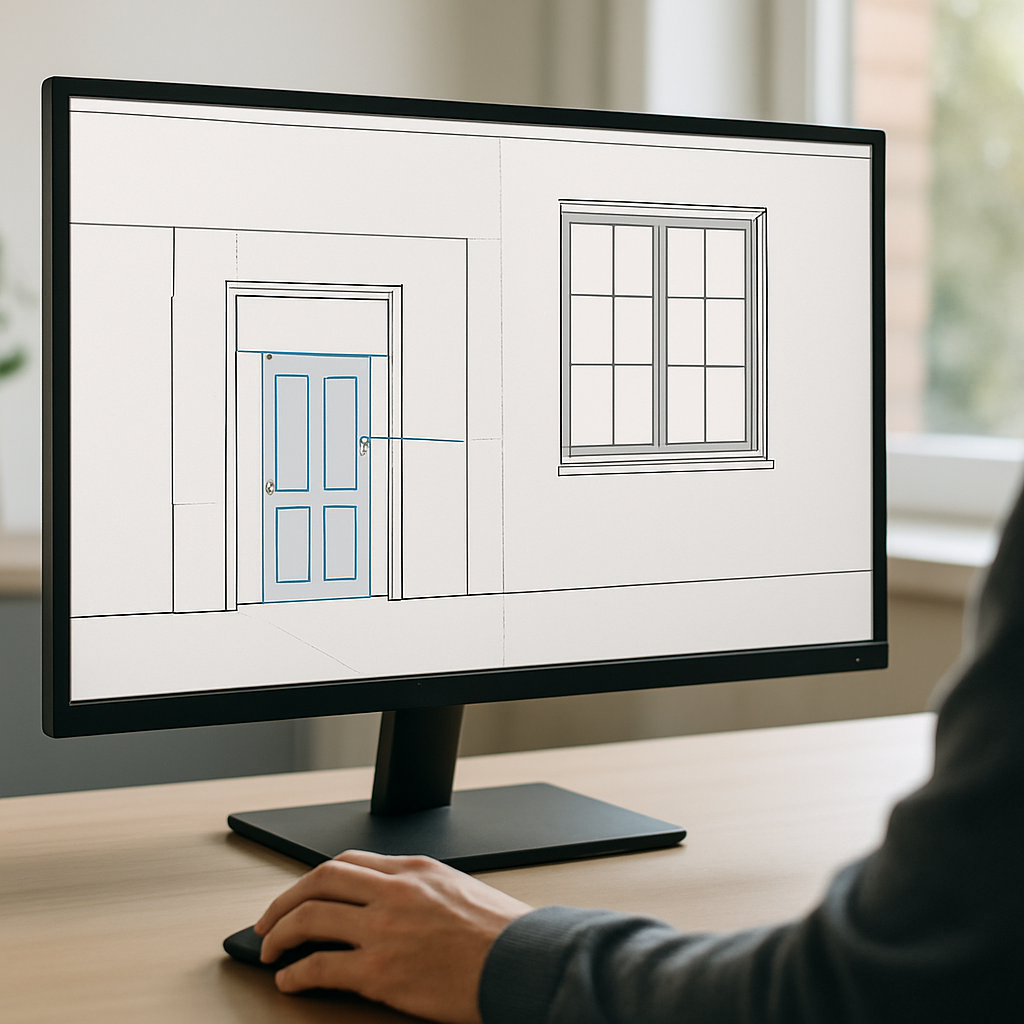
With your families loaded, it’s tempting to dive right in and start dropping doors and windows wherever they seem to fit. But trust me, a little patience and precision here will save you a world of frustration later on. In Revit, every door and window must be hosted by a wall—so before you start, make sure your wall layout is dialed in. Plan views are usually your go-to for placing these elements, but don’t forget about 3D or elevation views. Sometimes, a misalignment or a clearance issue is obvious in 3D that you’d totally miss in 2D.
Revit gives you a lot of tools to get placements just right. For doors, you can flip the swing or change the orientation with one click. Instance properties let you adjust things like width, height, or head height right after placement. For windows, setting the sill height or aligning to the centerline of a wall is a breeze. Don’t just settle for wherever Revit drops these objects—use temporary dimensions and the alignment tool to fine-tune placement. For example, make sure your doors are perfectly lined up with corridors or that window heads match across multiple elevations. It’s these little tweaks that keep your drawings clean and help you dodge code issues.
Here’s a trick I picked up: if you’re placing a bunch of identical windows in a row, use the ‘Copy’ tool with a fixed offset, then follow up with ‘Align’ to snap everything into perfect place. Start by getting the first window set exactly how you want it, then copy and align the rest. It’s much quicker than manually adjusting each one. For doors, consider turning on the ‘Tag on Placement’ option. It automatically tags each door as you go, saving you a step and keeping your documentation tidy from the beginning.
Technique #3: Managing Parameters and Ensuring Schedulability
What really sets Revit apart—and where doors and windows become truly powerful—is in their parameters. Each instance you drop into your model can be loaded with custom data: fire ratings, manufacturers, finishes, acoustic ratings, you name it. The secret is to fill out these parameters as you go, not just at the end. Develop the habit early, and you’ll find schedule creation to be a total breeze, not a panicked rush before deadline.
If your project is a big one with multiple team members, think about setting up shared parameters for things you want to track across different family types. Let’s say accessibility is a major concern and you need to log ADA compliance for every door—set up a shared parameter, and make sure it’s included in each door family. This kind of consistency makes your schedules much more useful and saves you headaches later, especially when you’re handing off to consultants or contractors.
Don’t ignore Revit’s built-in warning messages, either. If you get an alert about duplicate marks or missing parameter data, take it seriously. These little red flags are your best chance to catch problems while they’re still easy to fix, long before they show up on a jobsite or in field questions. When you’re disciplined about parameters, generating accurate door and window schedules becomes nearly automatic—no more frantic data entry or checking and re-checking at the last minute.
Technique #4: Coordinating Openings with Structural and MEP Elements
Let’s be honest—doors and windows don’t exist in a vacuum. Their placement has ripple effects on structural supports and building systems. Coordination is everything here, and it’s a common spot where things can go sideways if you’re not careful. One of the biggest pitfalls is forgetting to line up door heads with structural beams, or failing to notice when a window’s placement interferes with an HVAC duct or electrical run. Revit’s linked model tools are your friend—bring in the structural or MEP models, and check your work in context to avoid future headaches.
As an example, make it a habit to double-check that your door heads aren’t bumping into beams, or that window sills aren’t blocked by a mechanical chase. Revit’s ‘Interference Check’ tool is worth its weight in gold here; it’ll flag clashes between your doors, windows, and other elements like magic. Proactively running interference checks and resolving issues now can spare you red-faced moments later or, worse, expensive change orders on-site.
Collaboration is key if you’re working with outside consultants or a bigger team. Set up a regular rhythm for sharing model updates. If you change an opening size, location, or even type, let your partners know right away. I’ve seen teams use color-coded filters or create special coordination views that highlight openings still under review or recently changed since the last coordination meeting. A little extra transparency now goes a long way in keeping everyone on the same page—and drastically reduces the risk of something falling through the cracks.
Technique #5: Leveraging Visualization and Documentation Tools for Review
Once your doors and windows are placed, you’re not quite done yet—next comes making sure your design intent is totally clear. Revit’s visualization tools are incredible for this. Take the time to create some 3D views, section boxes, or even a simple walkthrough that highlights the locations of your doors and windows. These visuals can make a world of difference when you’re presenting to clients, or even just reviewing the model with your site team (especially if they’re not used to reading 2D plans).
On the documentation front, use Revit’s detail callouts and elevation markers to generate enlarged views of important openings. Annotate everything clearly—dimensions, tags, keynotes—so there’s no confusion when it comes time to build. Don’t feel limited by the defaults, either. Customize your lineweights and hatch patterns to really emphasize critical features, like fire ratings, glass types, or accessibility requirements. A few extra minutes here can eliminate tons of questions later.
I also recommend setting up dedicated door and window schedules that pull in all relevant parameters—and if you can, include thumbnail images of the actual families used. This visual reference makes it so much easier for contractors to confirm what’s being ordered is what was modeled. And before you finalize your documentation, take a last walk through the model in 3D. You’d be surprised how often you’ll spot a misplaced or misaligned opening at this stage—things that might otherwise go unnoticed until it’s too late (or too expensive) to fix.
By approaching doors and windows as smart, interconnected pieces of your Revit workflow, you’re giving yourself a huge leg up. You’ll see the benefits in more than just speed—accurate documentation, airtight coordination, and a smoother construction process all follow naturally. The techniques above aren’t just theoretical; they’ve saved me and countless others from headaches and mistakes, and they can help you deliver top-notch results on every project you touch. The more you dive in and master these skills, the more you’ll discover just how much potential Revit has—and just how much more efficient and enjoyable your work can be.