





Mastering Residential Roof Design in Revit: A Step-by-Step Guide with Real Examples

Why Roofs Matter: Setting the Foundation for Smart Revit Design
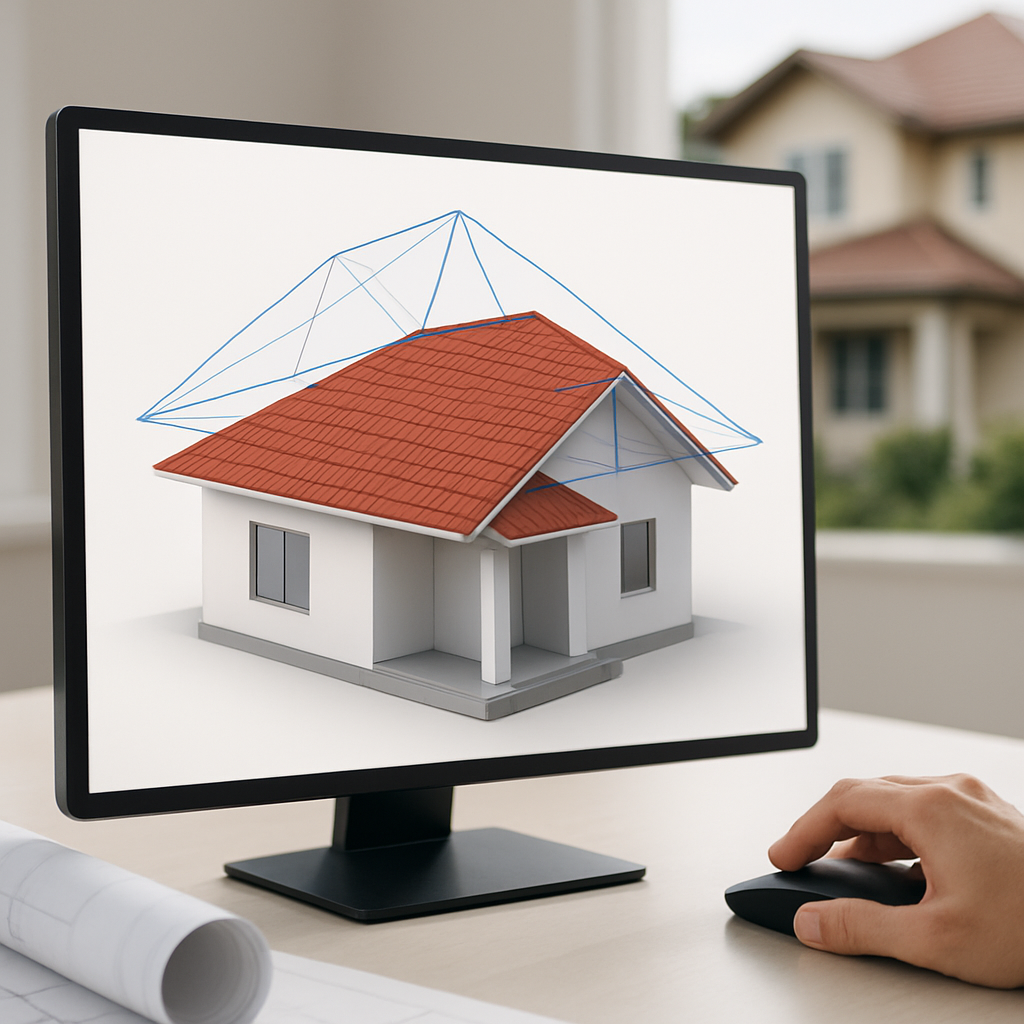
Let’s be honest—when it comes to designing houses in Revit, the roof isn’t just the icing on the cake. It’s a huge part of what makes a home feel grounded, unique, and—in many cases—actually affordable to build. I’ve seen more than a few eager Revit users breeze through the roof stage, only to realize later that it’s one of the most influential parts of the whole project. It’s not just about slapping on a lid; it’s about thinking like both an architect and a builder, right from the start. Whether you’re designing a classic gable roof, tackling a complicated hip, or experimenting with a sleek modern shed, the way you approach roofs in Revit shapes your workflow, accuracy, and, ultimately, how happy your client is at the end of the day.
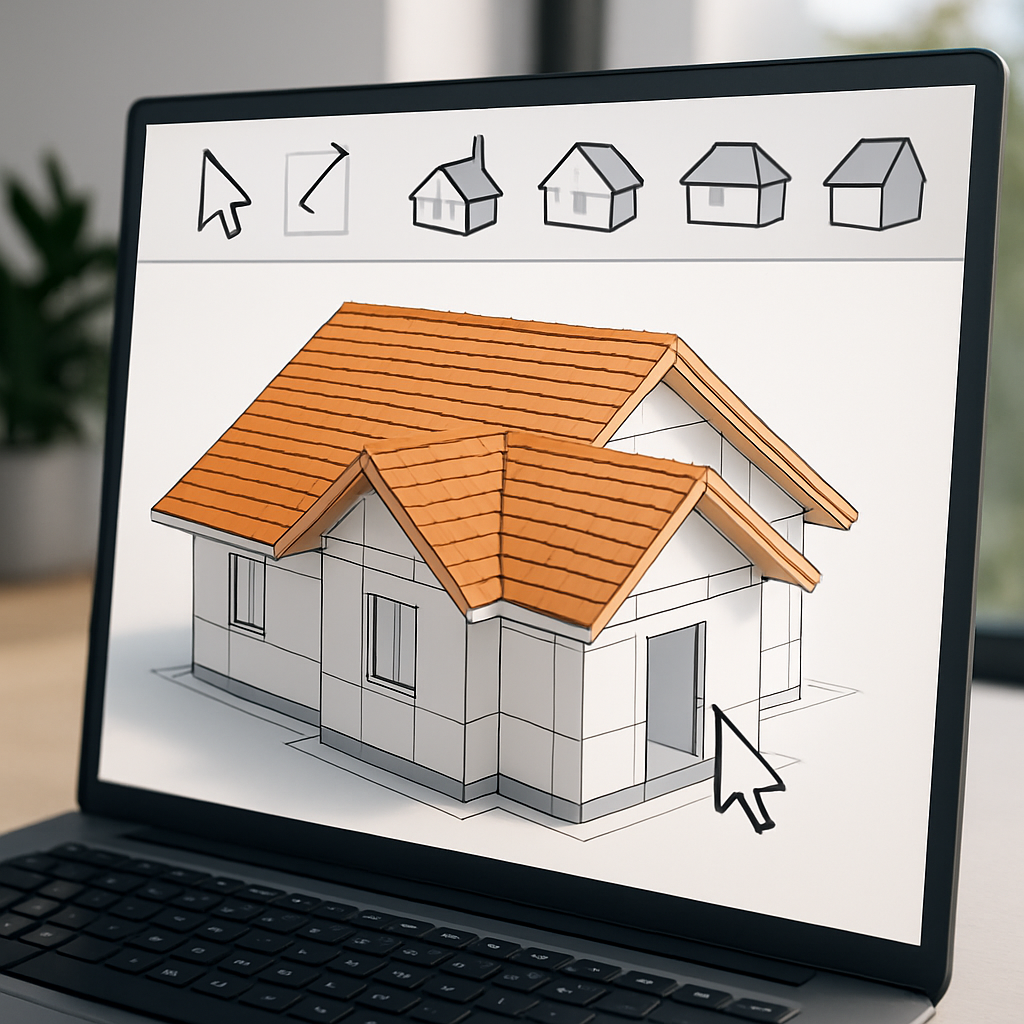
If you’ve ever felt overwhelmed by all those roof options, or watched Revit spit out some bizarre geometry you definitely didn’t intend, you’re not alone. The good news? With a bit of know-how and a couple of real-life tips, you can make Revit’s parametric tools work for you—and end up with roofs that look great and actually make sense to build. Let’s roll up our sleeves and dig into how you can make the whole roofing process smoother, easier, and more reliable, blending Revit’s features with what really matters in the field.
Breaking Down Revit’s Roof Tools: The Essentials You Need
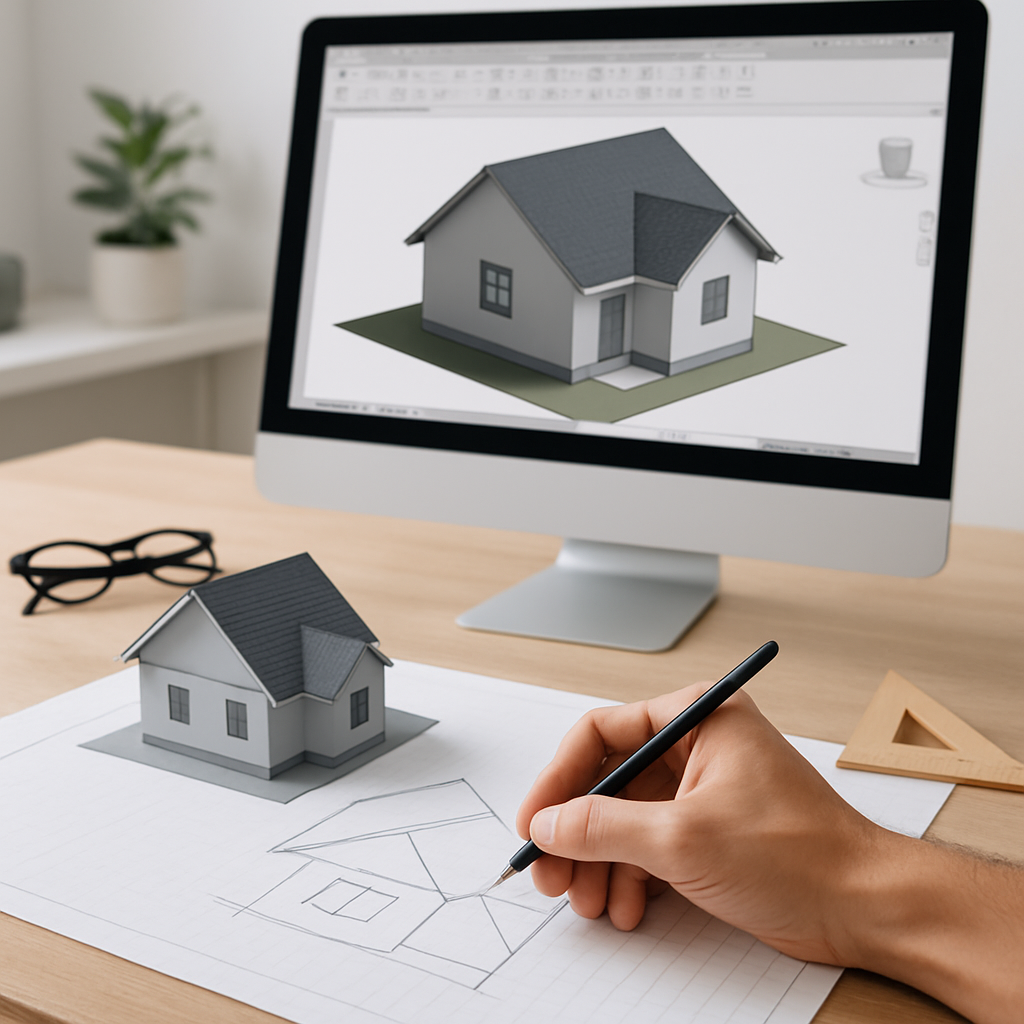
So, here’s the deal: Revit gives you a few different ways to create roofs, and depending on your project, you’ll probably find yourself reaching for different tools. If you’re just getting your feet wet, you’ll likely start out with Roof by Footprint and Roof by Extrusion. They both do the trick, but you’ll want to pick the right one for the job at hand.
Roof by Footprint is the classic choice for standard pitched roofs—the sort you see everywhere in suburban neighborhoods. You sketch the outline on a set level (usually the top floor or attic), set slopes on each edge, and watch as Revit takes care of the rest. Gables, hips, shed roofs—it’s all pretty straightforward here. Picture this: you’re designing a traditional single-family home with a simple gable roof. Just draw a rectangle over your exterior walls, set slopes on the two longer sides, leave the short ones flat, and voila—a textbook gable roof in no time.
But what if your design calls for something a little less conventional? Maybe you’re working on a custom home with a swooping curve or an offbeat angle. That’s where Roof by Extrusion comes into play. You draw the roof’s profile in elevation or section, and Revit “extrudes” it along the path you choose. I’ve seen this used to stunning effect—a designer I know created a dramatic arched roof for a house by the lake that echoed the rolling hills outside. Not only did it look beautiful, but it also provided a ton of functional attic space.
And don’t let the Roof by Face tool slip under your radar, especially if you like to explore design ideas using massing. This feature lets you turn any complex surface into a roof, which is a real lifesaver for modern projects or when you’re remodeling and dealing with all sorts of irregular geometry.
From Sketch to Structure: Detailed Steps for Real-World Roofs
Let’s walk through a practical example using the Roof by Footprint tool—because honestly, it’s a staple on residential jobs. Say you’re working on a cozy Craftsman bungalow. The main section has a gable roof, there’s a little hip-roofed porch out front, and a shed dormer sits above the entry, adding a bit of flair.
First things first: make sure your work plane is set to the right level—usually that’s the top floor or the attic. Use the Pick Walls tool to trace the perimeter of your exterior walls. Here’s a tip from the trenches: if you lock your roof footprint to the walls, any changes you make later to the building’s footprint will update the roof automatically. For the main gable, select the edges you want sloped (maybe a 6:12 pitch) and leave the short ends flat. For the porch, since it’s lower, you’ll set up a separate footprint on a different level, making sure all edges have a slope. When you get to the dormer, sketch out a smaller roof that overlaps with the main one, and soften the pitch to keep things looking balanced and intentional.
One detail that trips up a lot of folks—especially those new to residential work—is the overhang. In real life, those eaves aren’t just decorative; they keep rain off the walls and shade the windows. In Revit, you can set your overhang as you draw, or tweak it later in the Properties panel. And if your client comes back at the last minute and asks for deeper eaves (it happens more often than you’d think!), you can just update that one parameter and you’re done.
Now, if you’re working with roofs that bump into each other—like where a garage meets the main house—Revit’s Join/Unjoin Roof tools can be a real time-saver. That said, sometimes the auto-join just doesn’t play nice. In those cases, don’t be afraid to model the intersecting sections as separate roofs and manually adjust their footprints. It’s a bit more effort, but you get tighter control over those messy corners or oddball details (like when the eave height changes from one section to another).
Customizing Roofs: Dormers, Openings, and Materiality
It’s rare that a residential roof is just one big, blank surface. You’ve got dormers, skylights, chimneys—little touches that add both style and complexity. In Revit, adding a dormer starts with creating new walls right on the roof, followed by cutting out the main roof using the Opening tool. For example, think about a Victorian house with a bunch of gabled dormers poking out of the roof. After you’ve built the little dormer walls and their tiny roofs, grab the Dormer Opening tool and trace around the intersection. Instantly, Revit carves out the opening, keeping your model tidy and your schedules accurate. This is a lifesaver when you’re coordinating with structural or MEP folks later down the line.
Skylights and roof windows are handled a bit differently—they’re hosted families, which means you can just drop them onto your roof, set their parameters, and let Revit do its thing. Need to swap out the shingle look for a sleek standing seam metal roof? Change the material in the roof type properties and update the hatch or rendering. Your visuals will look better, and you’ll get more precise takeoffs, making life a lot easier for the contractors.
But material choice isn’t just about visuals. If you’re modeling for energy analysis or building to code, assign the right thermal properties to your roof assembly. For instance, maybe you’re working on a Passive House upgrade and need to show beefed-up insulation. By tweaking the roof assembly’s structure in Revit, you can prove compliance and generate spot-on documentation—all without breaking a sweat.
Best Practices and Common Pitfalls: Lessons from the Field
Even seasoned Revit users hit the occasional snag with residential roofs. One issue that pops up a lot is misalignment between your roof and wall geometry. It sounds basic, but it can create weird gaps or clumsy eaves if you’re not careful. Always give your wall constraints a double check—they should line up with the same level as your roof footprint. And if you’re working with sloped walls or stepped foundations, pay extra attention to those base and top offsets. It’s the kind of detail that can save you a headache (or an embarrassing RFI) down the road.
Another classic mistake is forgetting how the roof shape impacts the interior. If you’re carving out attic bedrooms or storage, model the roof early so you don’t get blindsided by headroom issues later. Take advantage of Section Box and Section views—they make it way easier to see how the roof impacts interior spaces. I remember a project where an architect caught a looming stair clearance problem just by slicing through the model and tweaking the pitch—before anyone hit the job site. That little bit of forethought saved time, money, and a few gray hairs for everyone involved.
Don’t overlook how your roof model affects the work of structural and MEP teams. The roof drives truss layouts, vent locations, and drainage designs. If you use shared parameters and sensible naming conventions, it’ll make collaboration a breeze. For instance, labeling different roof types right in the model means engineers can find what they need quickly, and you’re less likely to get frantic phone calls about which assembly goes where. In big, multidisciplinary teams, this kind of clarity really pays off.
Last but definitely not least: stay flexible. Residential clients change their minds—a lot. If you build adaptability into your Revit workflow (with parametric constraints, grouped roof types, and clean, organized sketches), it’s a lot less stressful to accommodate those last-minute requests. That’s the difference between a Revit pro and someone who’s stuck wrestling with a bloated, error-prone file every time the client wants something new.
Taking Your Roofs Further: Visualization and Documentation Tips
Once you’ve nailed your roof in Revit, it’s time to show it off. Start by dialing in your 3D views—Section Boxes are super helpful for spotlighting how the roof goes together or how the dormers fit with the rest. For client presentations, swap in realistic materials and play with sun studies. Clients eat this stuff up—they love seeing how sunlight shifts across the roof at different times of day, helping them picture life in their new home.
On the documentation end, don’t skimp on Revit’s tagging and annotation tools. Drop in slope arrows, call out your overhang dimensions, and detail important joints or intersections at a larger scale. If you’re handling a renovation or addition, take advantage of phasing to show what’s new versus what’s existing. It’s a game changer for contractors who need to see how old and new roofs will connect, and it makes permitting much smoother.
And finally, share your model with the rest of the team in a way that keeps all those parametric goodies intact. Exporting to IFC or using a cloud-based platform means everyone—from consultants to contractors—has the right information from the start. In my experience, architects who go the extra mile here see fewer errors, fewer RFIs, and a lot less drama during construction. That’s the real reward for putting in the effort to model roofs well in Revit: projects run smoother, and both you and your clients end up happier.